


Depending on your relationship with Altium, the services offered on the Altium Platform will be experienced from within Altium Designer and through the platform's browser-based interface. This page takes a look at the latter and provides an overview of what you'll see when you register an Altium Account and sign in to the Altium Platform Interface. For the latest information on the security,…
Altium's MCAD CoDesigner technology connects the mechanical and electrical design domains, allowing the mechanical and electronic engineers to pass the loaded PCB back and forth between the two domains. In your Altium design software, this is achieved through an extension that loads and extracts board and component data from the PCB editor, the MCAD CoDesigner extension. In the MCAD software the…
The Workspace provides an advanced, manufacturing-oriented CAD-centric view of the project. This management interface offers Design, Tasks, and History views options, plus more: Design – display and navigate source project design documents, view design object properties and place review comments. This view uses the Web Viewer interface to present your design across five distinct data sub-views,…
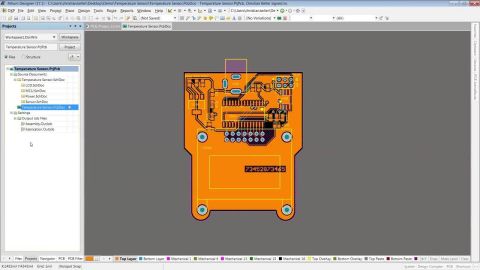
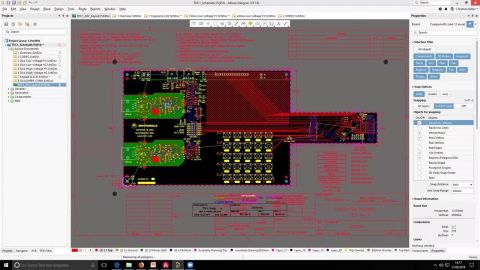
The Altium 365 Web Viewer interface provides universal access to PCB project documents through a standard web browser. Much more than just a web-based viewer, its advanced browser technology allows users to navigate through the project structure, interact with design documents, extract information about elements in the design, and highlight areas or objects for commenting notes. When viewing…
There are three ways to create requirements in Requirements Portal: Creating manually Importing Requirements Use the Engineering Assistant to generate requirements based on a prompt This page describes how to create Requirements by manually adding the necessary information. To get more insights on the other two options, please use the links to get to the corresponding documentation. To add a new…
The other features in the Requirements Module are the Connections Graph and Status. Connections Graph The connections graph shows the parent-child, connected copy or master-follower relationships for all the requirements within the module. It also shows whether a requirement is verified or not. The user can easily differentiate this by looking at the colour code in the connections graph. To…
AI agents provide substantial advantages for engineering tasks like requirements capturing by significantly enhancing efficiency and automating complex, repetitive workflows. Requirements Portal's Engineering Assistant leverages AI technologies to provide you with fast, automated review tool for your requirements that allows you to ask questions about requirements in your current project in free…
The Insights feature in the requirements module provides a comprehensive visual summary of the current requirements status within the specification/section within your project. This interactive tool offers a high-level overview of various aspects, such as the state, verification status, and discussion activity on the requirements related to requirements across different folders, specifications,…
In this part of the tutorial, we will go through one of the primary user flows that can get you started using Requirements Portal: Gather and write requirements Breakdown requirements Review and improve requirements Approve and release specifications Creating a New Project On Requirements Portal's Home page (accessed when you open Requirements Portal from the nine-dot menu at the top right of the…
Bridging the ECAD-MCAD Divide The electronic product you hold in your hand is the melding of numerous, independent designs. Firstly there's the enclosure you're holding; inside that, there will be one or more electronic circuit boards, and on the board, there is often a microprocessor running software. Beyond that, there can be specialized sections of circuitry to perform unusual sensing or…
Learn More