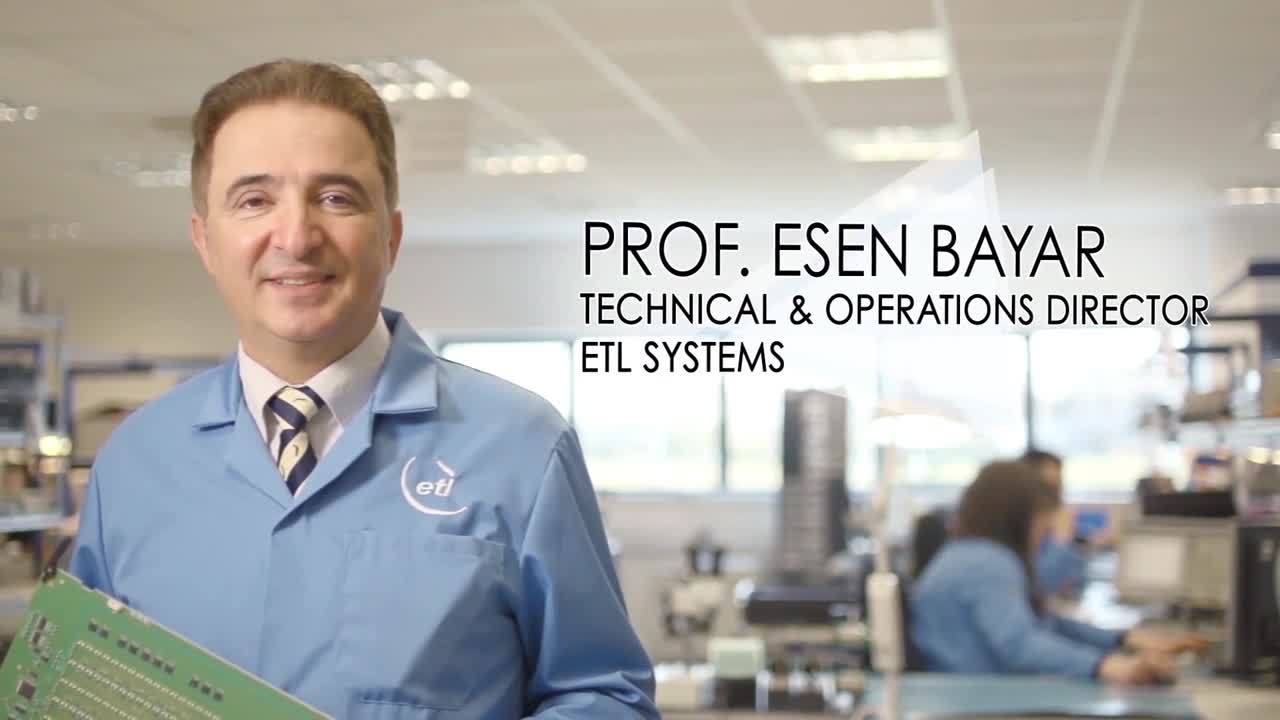

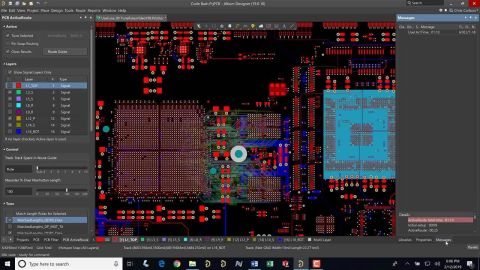

ETL systems, founded in 1984, services the satellite and telecommunications industry. See how they’ve used Altium Designer to seamlessly integrate their entire engineering department to produce the most advanced RF electronics.
This page provides quick reference information about the drawing objects that can be used in the Draftsman editor when creating manufacturing documentation for your design, giving you a means to quickly navigate to more detailed information about each. A Draftsman-based manufacturing drawing document can be added to a PCB design project (*.PCBDwf), a harness design project (*.HarDwf), or a multi…
The following sections present shortcut keys that are specific to the Draftsman Editor. For general information regarding shortcut keys - including access and editing, general Altium environment shortcuts, and accelerator keys - see Altium Designer Shortcut Keys. When looking at the shortcut key listings, keep in mind the following: When referring to shortcuts, use of the plus (+) symbol denotes…
Parent page: Streamlining Board Design Documentation with Draftsman A Draftsman document can use templates to define its page properties (Sheet template, *.DwsDot), and for new documents, a range of predetermined content (Document template, *.DwfDot). Both types of templates can be created from the PCB drawing file (file extension PCBDwf) that is currently open in the editor by saving the…
Parent page: Streamlining Board Design Documentation with Draftsman Draftsman provides a range of graphical element tools that can be used to place basic, free-form drawing elements in a document. The tools are accessed from the main Place menu, from the Graphical Tools drop-down menu () on the Drawing Annotations toolbar or the graphic tools drop down on the Active Bar. Place a graphic element…
A Draftsman document allows Bill Of Materials (BOM), Drill and range other data tables to be placed on the drawing and subsequently configured in the Properties panel. The tabular data is directly derived from the project PCB files and provides a simple, visual way to convey crucial information for the PCB fabrication and assembly processes. The BOM/Drill/Table placement options are available…
Parent page: Streamlining Board Design Documentation with Draftsman Dimensions Object dimension graphics may be placed on Board Views (Assembly, Fabrication, Section, Details, etc.) to indicate the lengths, sizes, and angles of the object outlines, or the distance between nominated objects. To place a dimension graphic, select the desired type from the Place menu or from the Dimension drop-down…
Parent page: Streamlining Board Design Documentation with Draftsman Draftsman provides a range of additional drawing and annotation tools designed to add important information to a Draftsman drawing document. These include both automated note and highlighting systems. The Active Bar (positioned at the top of the design space) offers a range of drop-down menus that include placement commands for…
Parent page: Working with Views Along with the Board Assembly View and the Board Fabrication View, Draftsman suggests a number of additional automated design views to complete your PCB drawing. Board Section View A Draftsman Board Section View provides a profile slice, or sectional, drawing taken from a nominated 'cut' point through a placed Board Assembly View. The section view generator takes…
Draftsman 板制造视图(Place » Board Fabrication View)是对 PCB 项目未装配(裸板)从顶层或底层观察时的自动图形合成。绘图数据来源于指定的物理板层,并可按需显示附加层。 两个已放置的板制造视图,显示 PCB 的顶层和底层 如需更高的细节,可从板制造视图创建一个 板细节视图。 当在设计空间中选中该视图时,可在 Properties 面板中配置已放置板制造视图的绘图表现形式。通用视图属性在该面板的 General 选项卡()中配置。 比例 Scale, Use Custom Scale 使用这些选项配置视图的比例。更多信息请参阅 使用视图 页面。 标题 Title, Location, Font 使用这些选项配置视图的标题。更多信息请参阅 使用视图 页面。 样式 Board Line 使用下拉列表选择用于渲染视图边框/轮廓的线宽和线型…
Parent page: Working with Views A Draftsman Board Assembly View is an automated graphic composite of the active PCB project's board outline, cutouts, holes, and component graphics with additional notation. Its drawing representation, included information and data sources are all configurable in the Properties panel. A placed board Assembly View can be moved, scaled and viewed from different sides…
Learn More