

When schematics were originally captured on paper, it was often on a single sheet of paper large enough to fill a big drafting table, which was reproduced on a dedicated, large-format copier. Times have changed, now schematics are captured on a desktop PC, stored on a server, and printed on a small-format laser printer. This change means that even a simple design can be more easily displayed and…
此页面的内容仅适用于Altium Designer版本22及以上。要选择软件的版本,请使用左侧导航树顶部的版本选择器。 此页面的内容仅适用于Altium NEXUS版本5及以上。要选择软件的版本,请使用左侧导航树顶部的版本选择器。
Altium Designer 整合了各种特性和功能,包括: 先进的布线技术 支持切边刚柔电路板设计 强大的数据管理工具 ECAD库包含超过300,000个即用元器件 强大的设计复用工具 实时成本估算和跟踪 动态供应链智能 原生3D可视化和间隙检查 灵活的发布管理工具 所有这些功能均以及整个设计过程都通过统一设计环境(同行唯一)来实现。 Altium Designer的统一特性使得设计数据可以从一个设计领域到下一个设计领域无缝传递。但是首先,直观感受到的大量数据信息进行深度展开的曲线模式会对这种提高生产率的环境及其包含的丰富功能显示巨大障碍。因此,Altium Designer特有的文档核心空间,提供了快速启动和运行软件所需的所有信息。从高层概览和分步进入展开,到通过软件直观界面提供的所有零碎功能和信息资源的全面覆盖,Altium Designer文档真正提供了随时可用的“知识树”状结构…
配置与自定义概述 您可以根据自身需求,通过多种方式配置Altium Designer设计区,包括使用双显示器、同时查看所有文档以及保存桌面一体布局。 您可以定制Altium Designer设计区,以提高设计工作的效率。编辑器中的资源包括菜单栏、工具栏和快捷键。在每个资源条目的后面,都有一个预打包进程启动程序,当对应资源条目被选中时,该应用程序会激活一个命令。菜单中所有可用命令均可以添加至资源中,或从资源中删除。预打包进程启动程序将选中命令时运行的进程与任何参数、位图(图标)、标题(资源上显示的项目的名称)、描述和关联快捷键绑定。一旦进程启动程序被修改,任何栏目上的命令的每个链接实例都将更新。 配置设计环境 下文描述了根据需求配置Altium Designer设计区的方法。 双显示器支持 Altium Designer支持使用推荐分辨率为2560 x 1440的双显示器…
以下各节列出了 Altium Designer 公共版本(从 25 版到 20.0 版)的历史发布说明。有关 Altium Designer、Altium Designer Develop 和 Altium Designer Agile 的最新发布说明,请访问 Public Release Notes 页面。 在找更早所有版本的 Altium Designer 公共发布说明?请访问 Other Installers 页面中的 Legacy Documentation 部分,在那里你可以下载 Zip 包,其中提供了 Altium Designer 15.1 及更早版本文档的离线 HTML“快照”。 Altium Designer 25 以下各节列出了 Altium Designer 25 公共版本的历史发布说明。 [collapse collapsed class="" title=…
The following sections list the release notes for publically released versions of Altium Designer 15.1 and Altium Designer 15.0 For a summary of new features and enhancements in Altium Designer 15.x, see New in Altium Designer. For a listing of release notes for versions of the software prior to 15.0, see Historical Release Notes. Version 15.1.16 Build: 63332 Date: 2 June 2016 7492 Restored the…
Release Notes Release Notes for Altium Designer 15.1 Release Notes for Altium Designer 15.0 Historical Release Notes QuickLinks Exploring Altium Designer Altium Designer - Features Altium Designer 15.1 Released: 8 May 2015 - Version: 15.1.9 Released: 2 June 2015 - Version: 15.1.12 Released: 2 July 2015 - Version: 15.1.13 Released: 22 July 2015 - Version: 15.1.14 Released: 14 September 2015 -…
父页面: 设计重用 重用现有设计中的电路部分有很强的动机:设计已经过验证,因此工程已经完成,这样做可以节省时间,有助于减少元件库存,还可以让设计团队腾出手来专注于新概念和新产品的开发。 设计师都是聪明人,他们一直在重复使用现有的设计。他们可能会重新捕捉一个成熟的电路,也可能会从现有的设计中复制粘贴,还可能会将现有的原理图表链接到新的设计中。 器件表通过提供模块化和一致的构建模块,简化了设计流程,并可在项目之间重复使用。设备表符号的放置和引用方式与元件类似。它们的连接方式和功能与引用标准原理图文档的工作表符号相同,但不会明确添加到项目中。 器件工作表 器件工作表是为在不同设计中重复使用而开发的构建模块。它们通常包含可在多个项目中使用的预定义电路,例如电源。 一个设备表可在多个项目中使用。 设备表的创建和存储与普通原理图文档一样,都在声明的设备表文件夹中。它们不是作为文档添加…
Parent page: Creating a New Component Before saving a Workspace Library component defined/edited in the Component Editor (in its Single Component Editing or Batch Component Editing mode) to the connected Workspace and making the component be available for use in designs, it is essential to make sure that this component meets the requirements in accordance with the configured settings. When you…
MCAD CoDesigner 如何支持线束设计 MCAD CoDesigner 的线束支持功能会集成线束的 ECAD 与 MCAD 模型。目标是允许 harness geometry 在 MCAD 中完成设计,然后将线束元素的物理参数(长度)回传到 ECAD。 ECAD 与 MCAD 环境之间的共同(且本质上相似)要素在于:线束的原理图/接线图在双方的线束模型交换中基本一致。然而,ECAD 与 MCAD 的物理模型不同:在 ECAD 侧并不存在精确的线束物理模型;而在 MCAD 侧,物理模型由 MCAD CoDesigner 基于 ECAD 侧提供的数据(连接器模型、线束拓扑以及线束对象参数)创建(生成)。 在 ECAD 侧,线束模型的数据来源是线束工程中的布局图。该图是平面的,并非真实线束比例,但包含拓扑以及线束的内部原理图,用于在 MCAD 侧构建线束物理模型草案。 MCAD…
1
Smooth Transition from CADSTAR to Altium Designer Develop For the purpose of this migration guide we are going to focus on importing CADSTAR Schematic and PCB Designs, if you require other files migrated please refer to their specific guide. Legacy Translation Before You Start to Import This guide will show you how to import data from your legacy system into Altium Designer Develop. What it will not ask is “why do you want to do it?” Customers
.
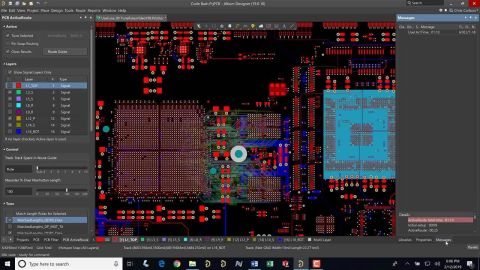
了解如何在交互式布线过程中快速更改和切换板层。
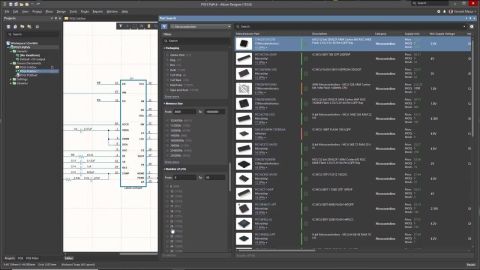
使用高级搜索和参数过滤器,能够快速地从所有库中找到合适的元件。
Solutions for Every Role and Team
Discover and evaluate design options earlier
Develop in one shared workspace
Scale with control and compliance
Connect every stage of hardware development
Learn More